
Just Say "Remind Me" — Builder Tasklist Now Sets Reminders While You Dictate
Every builder has a mental list of follow-ups. Check if the electrician finished the rough-in. Call the homeowner about the tile selection. Swing by Lot 22 to see if the framing passed inspection.
Some of those things get written down. Some get added to a phone alarm. And some just get forgotten — because by the time you're driving to the next job site, you're already thinking about the next problem.
You're already using your voice to create tasks in Builder Tasklist. So starting with v1.3.0, you can use your voice to set the reminder too.
Just Say "Remind Me"
While you're dictating a task, work the phrase "remind me" into what you're saying. Builder Tasklist detects it, pulls out the date and time (if you mentioned them), and sets the reminder automatically. No tapping through a menu.
Try any of these the next time you pull up Builder Tasklist in the truck:
"Remind me tomorrow at 3pm to call the electrician about the panel at Lot 441."
"Remind me Friday to follow up with the homeowner on the kitchen backsplash."
"Remind me to order sod for Lot 12."
What happens behind the scenes:
We create the task using the action in your sentence ("call the electrician," "follow up with the homeowner," "order sod")
We set the reminder for the date and time you mentioned
If you skipped the time, we default to 8:00 AM
If you skipped the date, we default to tomorrow
You see a confirmation card before anything is saved, so you can tweak it
The task gets created no matter what — even if your dictation was rough. Nothing falls through.
What Reminders Do
Task reminders send push notifications to all task owners at a specific time. You pick the reminder time when creating or editing the task. Reminders are tied to the task, so if the task is marked complete or deleted, the reminder is automatically canceled.
How It Works
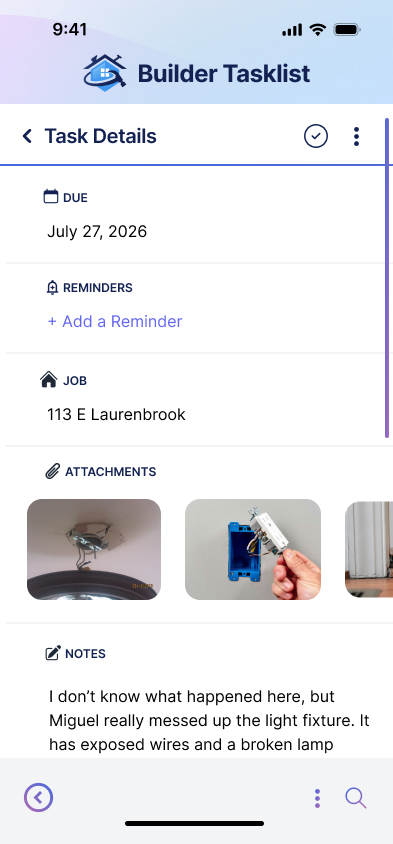
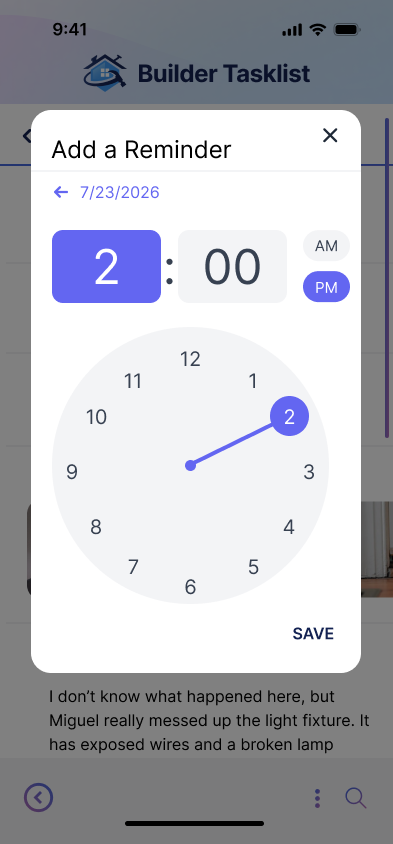
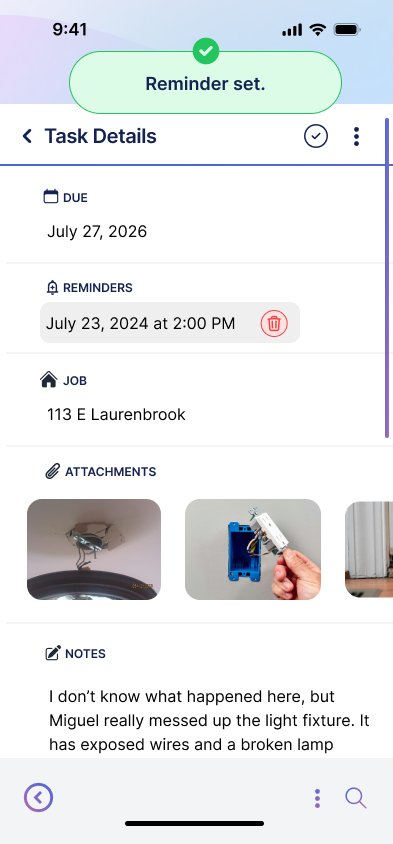
You can add a reminder in three places:
From the task detail screen
Immediately after creating a task with dictation
By simply dictating a reminder date and time
What the Notification Looks Like
Each reminder generates a push notification. Notifications use a bold title and supporting text for clarity. When possible, we show the job name and task details clearly.
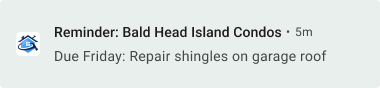
Example of an Android mobile push notification
If the task is due today, tomorrow, or yesterday, that language will appear in the notification instead of a date. For tasks due within the next 7 days, the day of the week is used.
Tapping the notification opens the task detail screen.
Other Details to Know
The reminder will use the user's current timezone
If task ownership changes before the reminder fires, the new task owners will receive it
If a task is overdue, reminders can still be set, but they can't point to a past time
Who This Helps
Site Supervisors who want a heads-up before walkthroughs
Project Managers who need to prep for inspections or deliveries
Subcontractors who rely on clear, timely instructions
Builder Tasklist already makes it easy to document work. Now you can also make sure it gets done on time.
Try setting a reminder on your next task.
A Premium Feature That Keeps You on Track
Reminders are available to paid and trial accounts. If you're on the free plan, you'll see the option on your tasks — tap it to upgrade and unlock reminders along with everything else in Builder Tasklist.
Update Now
v1.3.0 is available on the App Store and Google Play. The update is automatic — just make sure you're running the latest version, pull up a task, and say "remind me."